
SSL errors are fairly common to see on the web; however, many site owners don’t catch their errors because they generally see their site in only a single browser.
Even large companies sometimes have SSL issues:

The reason it is so important to test your SSL is not just security (which is important) but also website conversions.
If you see an error message like the above, or worse yet – one of the errors that actually stops you from loading the page (like below); you will lose a lot of traffic and conversions very quickly.
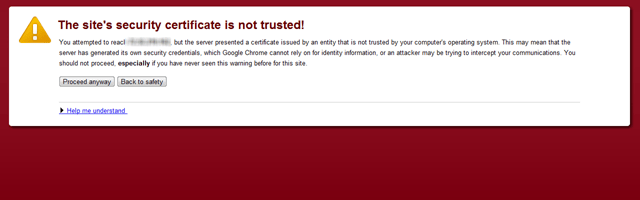
The difficult part of testing your SSLs is that Chrome, IE, and Firefox have different ways they check SSLs and determine if they should show the ‘lock’ icon in or an unlocked icon in the browser decide to interrupt the browsing process with a huge error warning that doesn’t let you get to the page.
It is possible for one browser to stop you and ask you if you even want to go forward and another browser show the page as completely secure.
Testing your SSL in each browser
The easiest browser to start testing in is Internet Explorer. IE is much more consistent than the other browsers in how it renders the lock icon. Rarely in IE will you see a site secure one moment and insecure the next. Usually if your site is ‘locked’ in IE; unless something happens – it will stay that way.
The reason IE is so much easier to check is that IE is a bit more forgiving (or maybe just much better at checking) for intermediate SSLs and identify verification.
Firefox is the least forgiving of SSL installations. Firefox checks intermediate certificates, verification of ownership, etc – and if something isn’t right – then Firefox may show a big error to the searcher. However, once you get your SSL working correctly in Firefox, Firefox is as consistent as IE in rendering lock icons. Therefore, Firefox is the second browser I check items in.
Chrome is the most annoying browser to check. Your site can be secure one minute in Chrome, not the next, and secure again after that. If you are a GMail user – pay attention to the lock icon in GMail. You will notice that even if you access GMail (or G Apps) via https that the icon will fluctuate between sessions from secure to insecure to the new skull and crossbones. Chrome is also the most likely browser to suddenly decide a page is insecure. This might happen in the middle of a browsing session when you are on a page one minute, click around a site, come back to a page and suddenly Chrome displays a huge warning site that the site is insecure or (or some other message such as malware), even when there isn’t anything wrong. Because of how maddening Chrome can be; this is the last browser I generally check for compatibility.
How do you check a site for insecure items?
If you see issues with your site, there are a few steps to take:
View the source code. Look for images, CSS files, or scripts that are being called by http instead of https. This is the number one reason why pages are not secure. Change the source to https.
If you are using sharing icons on the page, those icons must be called from a secure location as well. You might have pages you need to remove these icons from (and your shopping cart pages or secure forms don’t really need tweet buttons on them anyway – put them on the thank you page).
If you can’t find anything wrong, use a plug-in like HTTPFox. This Firefox plug-in will show you all of the HTTP requests being made by a page. Look for the HTTP ones as those are causing the errors.
Another easy tool to use is the ‘inspect element’ one in Chrome. In Chrome, right click on a page and choose ‘inspect element’. This will bring up a lot of stats and features to examine a site.

The new chrome warning in a browser is a skull and crossbones. This type of warning is more visible than a simple unlocked icon. Consumers are increasingly becoming aware of security issues (everyone has a friend who has had their Twitter or Facebook account hacked); ensuing your SSLs work, and all of the browsers display locked icons will be a necessity to maintaining and increasing conversion rates.